Creative Drive CRO Contact Us

Top / Feature / Heatmap

Analysis

Heatmap

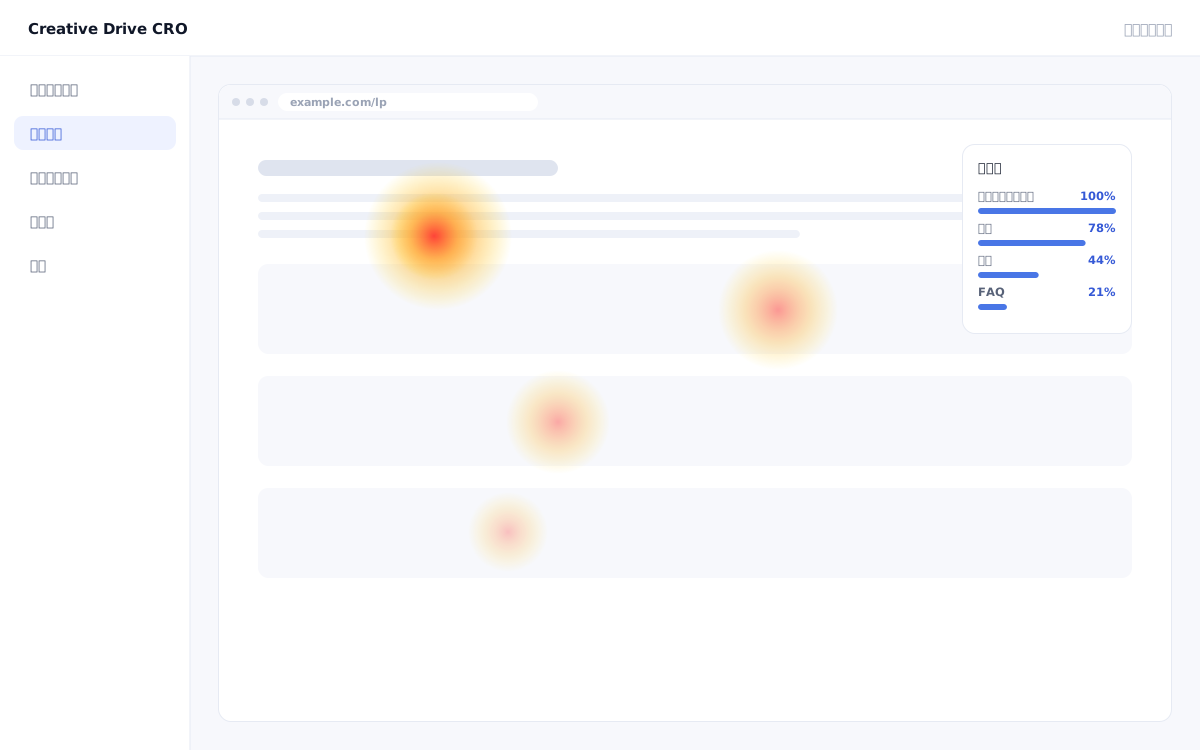
View areas with the most clicks and how far the page was read, overlaid in color on the actual page.With charts, you can identify problem areas more quickly than with numerical tables.

Heatmap screen

"The CVR of my LP is low, but I can't figure out where the problem is just by looking at the numbers" — in situations like this, being able to visually understand where on the page people are clicking and how far they are reading makes it intuitive to identify which areas to prioritize for improvement.The Creative Drive CRO heatmap displays click distribution and scroll depth on pages where the measurement tag is installed, overlaid on actual page images using color visualization.Without having to manually interpret tables of numbers, you can quickly identify issues such as "the CTA button is located in an area that users aren't reading" or "a large number of visitors are dropping off in the first view."

We solve these challenges

What you can do

How it works

The Creative Drive CRO heatmap overlays data onto actual page images based on click events and scroll depth data captured by the measurement tag.The click heatmap displays the number of clicks and click rate for each element using color gradients.The scroll heatmap displays how far down the page visitors have scrolled using a gradient visualization, and you can also check the read-through rate for each section as a numerical value.You can switch between device-specific data (PC/smartphone/tablet) and navigate directly from the heatmap screen to the live page editing feature to begin making improvements.

Use it in situations like this

Check if the CTA is not placed in a position with a low scroll reach rate

Check the percentage of visitors who have reached the CTA button position using the scroll heatmap.If you know that "the CTA is below the fold and only 30% of visitors are reaching it," the improvement action of moving the CTA higher becomes clear.

Discover that different areas are being read on smartphones and PCs

There are cases where sections that are read to the end on PC are abandoned midway on smartphones.By comparing heatmaps by PC and smartphone, you can prioritize optimization measures for each device.

Change the copy and design of CTAs that are not getting clicks

If the click heatmap shows that clicks on the CTA button are low, you can navigate directly to the live page editor to change the CTA text, color, and position, then launch an A/B test.

Getting started

01

Install measurement tag

Verify that the measurement tag is installed on the target page.Heatmap data is automatically collected on pages where the tracking tag is installed.

02

Select a page in heatmap

Select the page URL you want to analyze using the heatmap feature in the admin panel.When sufficient data has accumulated (guideline: 100 sessions or more), the color will appear darker.

03

Switch between clicks and scrolls to analyze

Switch between click heatmaps and scroll heatmaps to review them.Switch between PC and smartphone views to identify device-specific issues.

04

Identify issues and proceed to actual page editing

Once you have identified issues such as "CTA is placed where it is not being read" or "high drop-off in important sections," navigate directly to the live page editing feature to set up improvement proposals.

FAQ

Is additional tag installation required to view heatmaps?
Not needed.If the Creative Drive CRO measurement tag is installed on the page, heatmap data will be collected without any additional configuration.
Can I view heatmaps separately for PC and smartphone?
Yes.You can switch between devices (PC, smartphone, tablet) to view the heatmap.If mobile visitors are the majority, we recommend checking the mobile heatmap first.
Can you move directly from the heatmap into improvement work?
Yes.You can navigate directly to the actual page editing feature from the heatmap screen.The entire flow—from immediately fixing discovered issues to connecting them to A/B tests—is completed in a single screen.

Related features

Real-time measurement infrastructureCounts unique values by deduplicating with your own ID.Traffic, Search & Advertising ReportsTrack everything from traffic source to conversion in a single line.Attribution AnalysisSwitches between first touch, last touch, and even distribution.

You can try it with your current site as-is

You can start by placing a single line of tag.

Contact Us