Even when a lead submits an inquiry form, delays in response occur because teams fail to notice if the lead hasn't entered the CRM — this "awareness time lag" leads to missed sales opportunities due to slow initial follow-up.Additionally, if you can capture in real time browsing behaviors that indicate high purchase intent but have not yet led to form submissions (such as multiple visits to the pricing page), you can optimize the timing of proactive outreach.The Creative Drive CRO notification feature delivers real-time alerts for these important events via Slack, LINE, email, and Webhook.
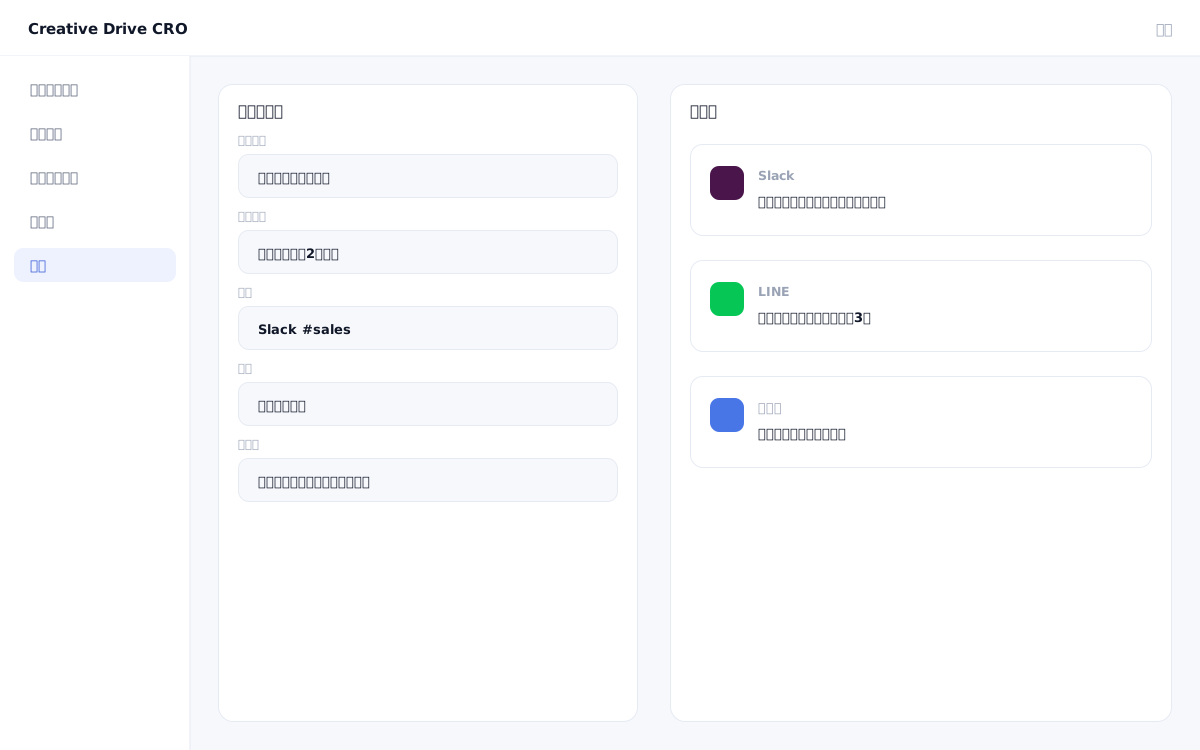
The Creative Drive CRO notification feature detects events such as form submissions, CV completions, and purchase temperature score threshold exceedances, and sends real-time alerts to your configured notification recipients.Notification destinations support Slack (Incoming Webhook), LINE (LINE Notify), email, and Webhook URL.For Webhooks, you can freely configure the payload in JSON format and connect to any SaaS via Zapier or Make.The fields to include in notifications, notification conditions, and notification destinations can be configured individually for each notification rule, and multiple rules can be run in parallel.GTM data layer output is also supported.
At the same time as form submission, lead information (name, company name, email address, and traffic source) will be sent as a notification to the specified Slack channel.You can notice immediately and take initial action without checking the CRM.
Set conditions such as "visited the pricing page 2 or more times" or "viewed 5 or more pages in the past 7 days," and receive a Slack notification whenever a matching visitor is detected.If the lead has been de-anonymized, the name and company name will also be included in the notification.
By setting a Webhook URL, you can send notifications and data to any SaaS (Chatwork, Teams, Notion, Kintone, etc.) via Zapier or Make (formerly Integromat).There are no restrictions on supported tools.
Set the authentication information for Slack, LINE, and email in the management screen.Webhook setup is complete simply by entering a URL.
Set "when (which event triggers it)," "what (which data)," and "where (Slack, LINE, email, or Webhook)" to send notifications.
Configure whether to receive notifications for all form submissions or limit them to specific conditions (e.g., specific forms only, or only when a score exceeds a threshold).
Send a test notification using the configured rules and verify that it is delivered correctly to the specified destination and that the included information is accurate.
You can start by placing a single line of tag.
Contact Us