Creative Drive CRO Contact Us

Top / Feature / Permissions and Partner Management

Cross-cutting

Permissions and Partner Management

Internal team members and external partners can all work together on the same screen.There is no limit on the number of people that can be registered.

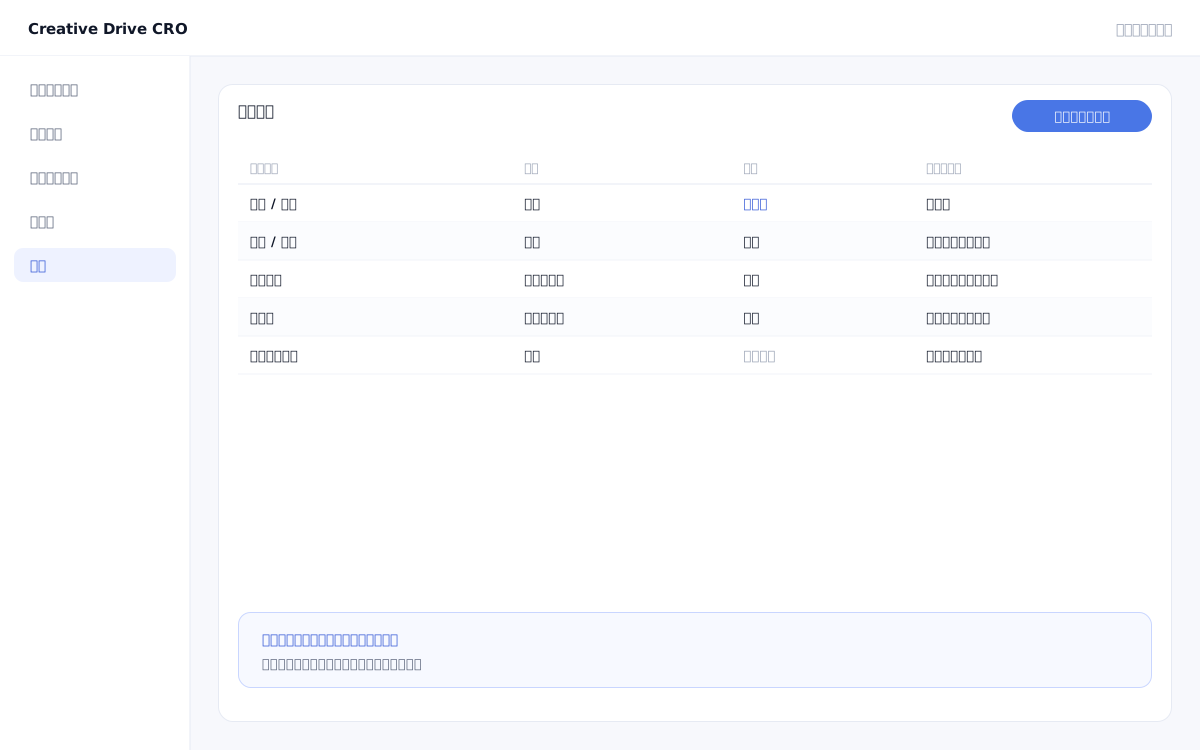
Permissions and Partner Management Screen

When using LPO/CRO tools in collaboration with agencies or production companies, permission management challenges often arise, such as: "We don't want to share all data, but we want them to freely operate within their assigned scope" or "An agency manages multiple clients, but it's problematic if a person in charge of Client A can view Client B's data."The Creative Drive CRO permission and partner management feature allows you to combine per-user permission settings (view only, editable, administrator) with client-level viewing scope restrictions.There is no limit on the number of registered users, and an admin dashboard for agencies is also available.

We solve these challenges

What you can do

How it works

Creative Drive CRO's permission and partner management is designed with a combination of account-level permissions (Administrator, Editor, Viewer) and project (client)-level access control.With an agency account, you can manage multiple projects for your clients, and team members can only access the projects they have been assigned to.User invitations are sent by email address, and there is no limit on the number of registrations.Operation history is recorded, allowing you to check later who changed which settings and when.

Use it in situations like this

Grant editing permissions to a production company and outsource LP creation

Invite members of the production company as users and grant them permissions for LP creation and block editing.By restricting reports and content distribution settings to read-only access, you can provide an environment where users can access only what is necessary for their production work.

Agencies manage multiple clients in a single dashboard

With an agency account, you can manage projects for multiple clients in a single dashboard.Assign a person in charge for each client; they can only access projects belonging to that client.

Add users with report view-only access and share with management

By inviting executives and managers as read-only users, you can complete monthly report sharing entirely within the tool.You no longer need to go through the hassle of exporting and sending CSVs or PDFs.

Getting started

01

Invite users by email

Invite users by entering their email address in Member Management on the admin screen.The account will be activated once the invited user approves the email.

02

Set permission level

Select the permission level (Admin, Editor, or Viewer) for the user you want to invite.Agency members are granted access to the projects of their assigned clients.

03

Set access restrictions per client (for agencies)

If you manage multiple clients under an agency account, specify which projects (clients) each person can access.

04

Check changes in operation history

You can check the operation log in the admin panel to see when, who, and which settings were changed.

FAQ

Is there a limit on the number of users that can be registered?
None.You can register any number of members, including internal staff, agencies, and production companies.
How are permission types categorized?
The three basic levels are "Administrator (all operations permitted)," "Editor (can configure settings and create/edit content)," and "Viewer (can only view reports and settings)."Fine-grained permission settings per feature are also available.
If an agency manages multiple clients, can data mixing between clients be prevented?
Yes.You can segment projects by client, and it is possible to configure assigned users to only view and operate projects belonging to their respective client.Agency administrators can view all clients across the board.

Related features

Prospect & Customer InsightsIdentify anonymous visitors by name and display their engagement level.SFA/CRM IntegrationPass leads to HubSpot/Salesforce.Notifications and WebhooksSends to Slack, LINE, Email, and Zapier.

You can try it with your current site as-is

You can start by placing a single line of tag.

Contact Us